
If you’re searching for reliable ways to improve your internet connection, you’re likely tired of buffering videos, dropped calls, and slow download speeds. This article is designed to give you exactly what you need: clear, practical guidance on wifi signal boosting techniques that actually work in real-world environments.
We break down the causes of weak WiFi performance—from router placement and channel congestion to hardware limitations and protocol interference—so you understand not just what to change, but why it matters. Backed by in-depth research into network protocols, device optimization strategies, and emerging wireless technologies, this guide translates complex technical concepts into actionable steps you can apply immediately.
Whether you’re optimizing a home office, improving gaming latency, or stabilizing smart home devices, you’ll find proven methods, tool recommendations, and configuration tips that align with modern networking standards. The goal is simple: stronger signals, faster speeds, and a more reliable wireless experience.
Stop blaming your router. Start with placement. Move it to a central, elevated spot—no closets, no metal shelves. Walls absorb 2.4 GHz signals; concrete is the villain (sorry, apartment dwellers). Next, log into 192.168.1.1 and switch channels to a less crowded one; apps like WiFi Analyzer reveal congestion. Enable 5 GHz for speed, 2.4 GHz for range. Update firmware to patch protocol inefficiencies and security flaws (yes, updates matter). Try basic wifi signal boosting techniques like repositioning antennas vertically and horizontally. Finally, test with Speedtest before and after. Small tweaks compound into noticeable performance gains over time. Measure, adjust, repeat.
Location is Everything: Strategic Router Placement
The Centrality Principle
For those looking to enhance their workflow in a home office, implementing effective Wi-Fi signal boosting hacks can be a game changer, especially when paired with tools like Biszoxtall Software that optimize your network performance.
If your router is hiding in a corner like it’s in timeout, your Wi‑Fi will act like it too. Place it in the most central, elevated spot in your home. Wi‑Fi signals radiate outward in all directions, so centering reduces dead zones. Elevation helps because signals travel better without furniture blocking them (think of it as giving your router the high ground—very Star Wars). This is the single most effective free optimization before trying advanced wifi signal boosting techniques.
Material Obstructions
Not all walls are equal. Here’s the hierarchy from least to most obstructive:
- Drywall and wood
- Glass
- Brick
- Concrete
- Metal and water (yes, aquariums count)
Dense materials absorb or reflect radio frequencies, weakening performance.
Antenna Orientation
For external antennas, position one vertical and one horizontal. Devices orient differently, so perpendicular placement maximizes reception across phones, laptops, and tablets.
Choosing the Right Frequency Band
First, let’s compare 2.4 GHz vs 5 GHz side by side. The 2.4 GHz band offers longer range but lower speeds and more interference (think microwaves, Bluetooth, and your neighbor’s router). In contrast, 5 GHz delivers faster speeds with less congestion, but over shorter distances. So which wins? It depends. Assign smart home devices and older phones to 2.4 GHz for stability. Meanwhile, reserve 5 GHz for streaming, gaming, and video calls where speed matters most. It’s less “one-size-fits-all” and more “right tool for the job.”
Wi-Fi Channel Analysis
Next, open a Wi-Fi analyzer app to scan nearby networks. In the 2.4 GHz band, channels overlap—except for 1, 6, and 11. These are non-overlapping channels, meaning less interference when chosen correctly. If everyone nearby is on channel 6, switching to 1 or 11 can noticeably improve performance. This simple adjustment often outperforms flashy wifi signal boosting techniques (sometimes the quiet fix beats the loud gadget).
Quality of Service (QoS)
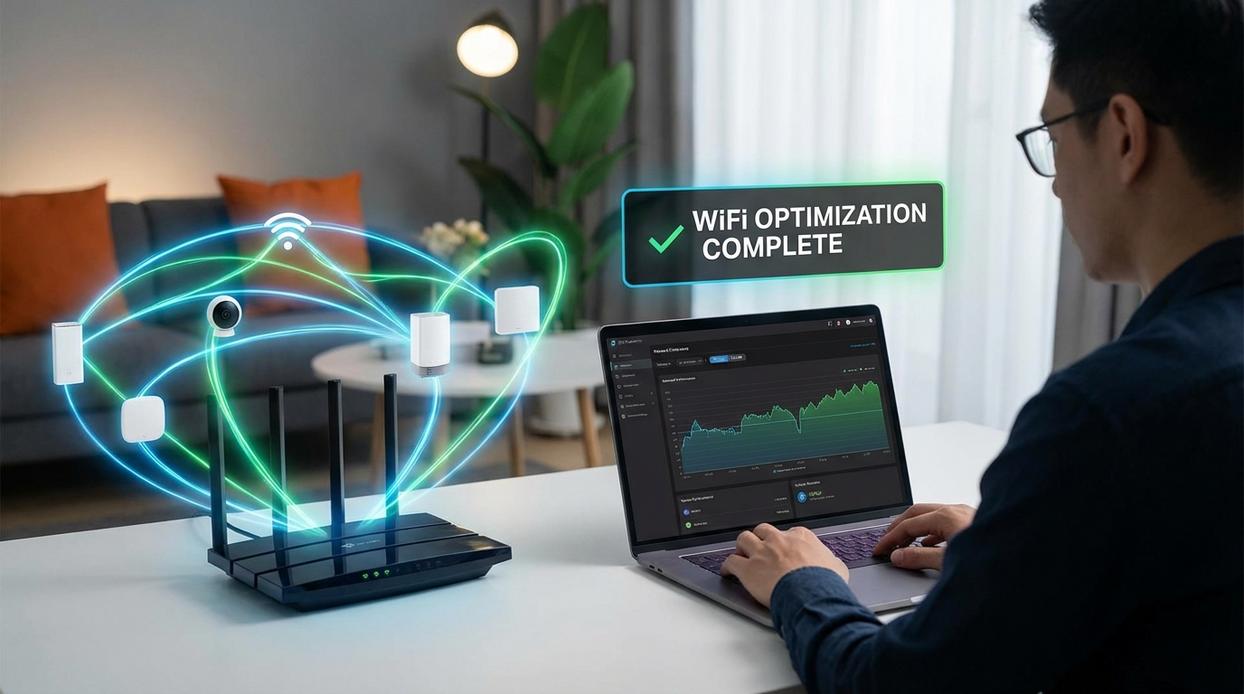
Finally, enable Quality of Service (QoS)—a router feature that prioritizes bandwidth. Navigate to your router’s admin panel, find QoS settings, and assign priority to devices or activities like Zoom or gaming. In short, QoS ensures critical traffic flows smoothly, even when the network is crowded.
Identifying and Eliminating Signal Interference
First, let’s look at the usual suspects. Many common household devices operate on the 2.4 GHz band—the same frequency used by most Wi‑Fi routers. Microwave ovens, for example, emit radiation around 2.45 GHz; studies from the IEEE show this overlap can temporarily disrupt nearby wireless signals when the appliance is running. Cordless phones and Bluetooth devices also share this spectrum, creating congestion that reduces throughput and increases latency.
Meanwhile, neighboring networks are a growing issue. In dense apartment buildings, dozens of routers often compete on overlapping channels. According to the Wi‑Fi Alliance, channel crowding significantly lowers performance, especially on default settings. Changing your channel is typically the fastest fix—and one of the simplest wifi signal boosting techniques available.
It’s also important to distinguish physical interference from radio frequency interference. A concrete wall weakens signals by absorption (think of it as a sponge for radio waves). In contrast, competing devices broadcast on the same frequency, causing digital “cross-talk.” If speeds lag, consider adjusting placement—or explore speed up your laptop practical performance tuning tips to rule out device bottlenecks.
The Overlooked Fix: Firmware Updates and Security
When was the last time you updated your router’s firmware? If you’re like most people, the answer is “never” (or “what’s firmware?”). Firmware is the built-in software that controls how your hardware functions. And contrary to popular belief, updates aren’t just about security scare stories.
First, performance and stability. Updates often fix bugs, improve data throughput (the amount of data moving across your network), and even enhance signal strength. Ever notice random drops during streaming? It might not be your provider. Meanwhile, people obsess over wifi signal boosting techniques yet ignore the software running the device.
Of course, some argue, “If it isn’t broken, don’t touch it.” Fair point. However, outdated firmware can expose routers to known protocol vulnerabilities—publicly documented exploits hackers actively scan for (CISA, 2023).
So how do you update safely? Log into your router’s admin panel, back up settings, check for updates, install, and reboot. Simple—and often transformative.
Smart Upgrades: When to Invest in New Hardware
First, let’s clarify the tools. A Wi‑Fi extender rebroadcasts your existing wireless signal to stretch coverage a bit farther. It’s ideal for simple range issues—say, getting decent Netflix in the guest room (because buffering during a finale is unforgivable). However, extenders cut bandwidth in half in many setups since they retransmit on the same channel (FCC guidance on shared spectrum efficiency).
By contrast, powerline adapters use your home’s electrical wiring to transmit data. That makes them better for thick walls, brick construction, or sending signal across floors where wireless struggles. If your office is above the garage, this often beats traditional wifi signal boosting techniques.
That said, both are patchwork fixes. A mesh network—multiple nodes working under one network name (SSID)—creates seamless roaming and centralized traffic management. Unlike extenders, mesh systems dynamically route traffic through the fastest node, which reduces latency and packet loss (IEEE 802.11 standards documentation). In larger or multi‑story homes, this architecture simply outperforms stopgap solutions.
Finally, consider your router. If it’s over five years old, lacks Wi‑Fi 6/6E, or chokes on 20+ devices, it’s likely the bottleneck. Pro tip: check your router’s CPU and RAM specs—most competitors ignore this, but overloaded hardware quietly kills performance.
A slow, unreliable connection isn’t permanent—it’s fixable. Start simple. Adjust router placement, update firmware, and test basic wifi signal boosting techniques before buying new gear.
| Step | Action |
|---|---|
| 1 | Reposition router centrally |
| 2 | Change channel settings |
Upgrade hardware only if problems persist. Measure speeds after each change to confirm gains clearly.
Take Control of Your Connection Today
You started this guide because slow speeds, dropped connections, and weak signal zones were disrupting your work, streaming, or smart devices. Now you understand what causes poor wireless performance and how strategic adjustments can dramatically improve stability and speed.
The real issue isn’t just lag — it’s lost productivity, constant frustration, and devices that never perform the way they should. Applying the right wifi signal boosting techniques ensures your network works for you instead of against you.
But knowledge alone won’t fix a weak signal. Taking action will.
Start by evaluating your router placement, upgrading outdated hardware, and optimizing your device settings today. If you want faster, stronger, and more reliable performance without the guesswork, explore proven optimization strategies trusted by thousands of users who demand seamless connectivity.
Don’t settle for buffering, lag spikes, or dead zones. Upgrade your network performance now and experience the fast, stable connection your devices were meant to deliver.
 There is a specific skill involved in explaining something clearly — one that is completely separate from actually knowing the subject. Kylor Vornhaven has both. They has spent years working with missed protocol vulnerabilities in a hands-on capacity, and an equal amount of time figuring out how to translate that experience into writing that people with different backgrounds can actually absorb and use.
Kylor tends to approach complex subjects — Missed Protocol Vulnerabilities, Tech Evolution Echoes, Expert Insights being good examples — by starting with what the reader already knows, then building outward from there rather than dropping them in the deep end. It sounds like a small thing. In practice it makes a significant difference in whether someone finishes the article or abandons it halfway through. They is also good at knowing when to stop — a surprisingly underrated skill. Some writers bury useful information under so many caveats and qualifications that the point disappears. Kylor knows where the point is and gets there without too many detours.
The practical effect of all this is that people who read Kylor's work tend to come away actually capable of doing something with it. Not just vaguely informed — actually capable. For a writer working in missed protocol vulnerabilities, that is probably the best possible outcome, and it's the standard Kylor holds they's own work to.
There is a specific skill involved in explaining something clearly — one that is completely separate from actually knowing the subject. Kylor Vornhaven has both. They has spent years working with missed protocol vulnerabilities in a hands-on capacity, and an equal amount of time figuring out how to translate that experience into writing that people with different backgrounds can actually absorb and use.
Kylor tends to approach complex subjects — Missed Protocol Vulnerabilities, Tech Evolution Echoes, Expert Insights being good examples — by starting with what the reader already knows, then building outward from there rather than dropping them in the deep end. It sounds like a small thing. In practice it makes a significant difference in whether someone finishes the article or abandons it halfway through. They is also good at knowing when to stop — a surprisingly underrated skill. Some writers bury useful information under so many caveats and qualifications that the point disappears. Kylor knows where the point is and gets there without too many detours.
The practical effect of all this is that people who read Kylor's work tend to come away actually capable of doing something with it. Not just vaguely informed — actually capable. For a writer working in missed protocol vulnerabilities, that is probably the best possible outcome, and it's the standard Kylor holds they's own work to.